
An Offline Storage Table (OST) file is a local copy of your mailbox stored on your computer. Outlook creates an OST file when you configure an Exchange Server, Microsoft 365, Outlook.com, or IMAP account. The file allows Outlook to synchronize mailbox data with the mail server and provides access to emails, contacts, calendars, and other mailbox items even when you are offline.
When an internet connection becomes available, Outlook automatically synchronizes the changes made in the OST file with the mail server. This enables you to continue reading emails, composing messages, and managing mailbox items without interruption.
On the other hand, a PST file is an Outlook data file suitable for archiving, transferring, and backing up mailbox items.
In some situations, you may need to convert an OST file to PST format, such as when accessing mailbox data from an orphaned OST file or creating a separate copy of mailbox items. In this post, we explain the methods to convert an OST file to a PST file on Windows.
Table of Contents
Why Do You Need to Convert an OST File to PST?
You may need to convert OST file to PST in several situations. Some of the most common are included:
- You want to transfer mailbox items from an OST file to another computer, Outlook profile, or Outlook account.
- You want to create a backup copy of emails, attachments, contacts, or calendar items.
- You need to preserve mailbox data stored in the OST file when the associated Outlook account, Exchange server, or mail server is no longer accessible.
- You want to keep older emails in a separate PST file instead of keeping them in your primary mailbox.
- Your original Outlook profile or account is no longer available, but the OST file still contains mailbox data that you want to access, recover, or save in a portable format.
Methods to Change OST File to PST Format
Below, we have mentioned the ways to convert an OST file to PST.
Method 1: Convert OST to PST using Outlook Import Export Wizard
If your Outlook account is working properly and the mailbox data is accessible, you can use the Outlook Import/Export Wizard to export mailbox items from the OST file to a PST file. To do this, follow these steps:
- Open Outlook on your Windows computer.
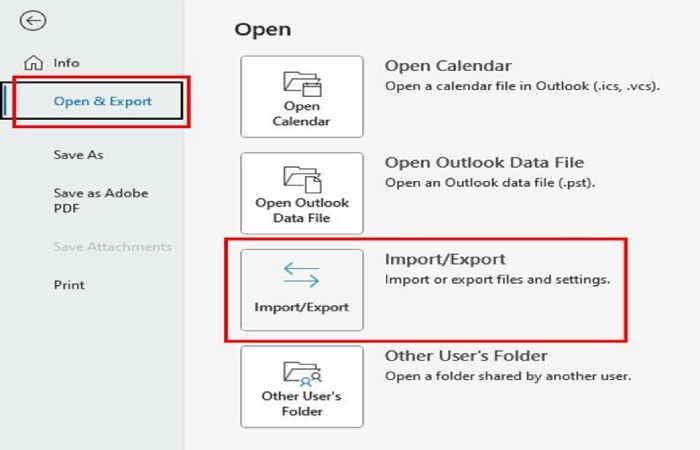
- Select File > Open & Export > Import/Export.
- Choose Export to a file and click Next. Select Outlook Data File (.pst) and click Next again.
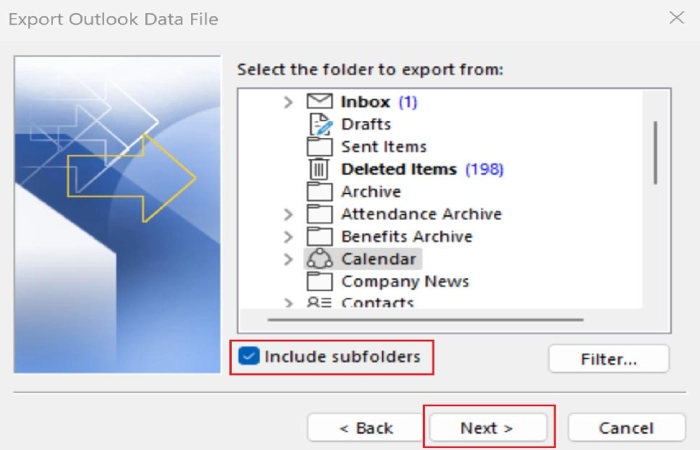
- Select the email account or mailbox folder you want to export. Check the Include subfolders box to include its subfolders.
- Click Browse, choose a local folder, and enter a name for the PST file.
- Click Finish. If prompted, set a password for the PST file.
- Wait for the export to complete.
Method 2: Use the Drag & Drop Method
If you need only certain emails or folders, you may not need to export the entire mailbox. You can create a PST data file and copy selected items into it. Steps to create a PST and copy emails
- Open Outlook on your Windows computer.
- Select New Items > More Items > Outlook Data File.
- Choose a location, enter a name for the PST file, and click OK to create the file.
- In the Outlook folder pane, verify that the new PST file appears in the list of Outlook data files.
- Select the emails, folders, contacts, or other items that you want to save from your mailbox.
- Copy or drag the selected items to the appropriate folder in the PST file.
- Open the PST file and confirm that the copied items are available and accessible.
Method 3: Convert your OST File to PST by using Archive Feature
Outlook’s Archive Feature is used to move older mailbox items to PST file. This method is useful when you want to save older items in a separate Outlook data file without exporting the entire mailbox. To archive mailbox items to a PST file, follow these steps:
- Open Outlook on your Windows computer.
- Select File > Info > Tools > Clean Up Old Items.
- In the Archive dialog box, select Archive this folder and all subfolders.
- Choose the mailbox or folder that contains the items you want to archive.
- Specify a date in the Archive items older than field. Outlook will archive items older than the selected date.
- Click Browse and select a location to save the archive PST file.
- Click OK to start the archiving process.
- After the process is complete, the archived items will be stored in the PST file and will appear in the Outlook folder pane.
Method 4: Convert OST File to PST Using a Professional Tool
Outlook’s built-in features like Import/Export Wizard and Archive only work when your profile is accessible. But if your OST file becomes orphaned or inaccessible, then the methods mentioned above will not be feasible. In situations like this, one of the best ways to convert your OST file to PST is by using an advanced OST to PST converter. One such tool you can go for is Stellar Converter for OST.
It is designed to convert and extract mailbox data from accessible, orphaned, or inaccessible OST files and save the recovered items in PST format. This tool can covert convert OST file of any size into Outlook importable PST file by maintaining original folder hierarchy and structure. Also, you can save the converted data in several other formats, like MSG, EML, RTF, HTML, PDF, etc. Here’s how you can use this tool:
Stellar also offers an online OST to PST converter for users who prefer a browser-based process. It can convert OST file to PST for up to 500 MB for free and its paid version can convert up to 5 GB.
Conclusion
Changing an Outlook data file from OST to PST in Windows is simple when the email account is active and accessible. Outlook Import/Export Wizard is the recommended method because it allows you to export emails, contacts, calendars, and other mailbox items directly to a PST file.
In this guide we have explained the methods to convert the OST file to PST. If you need to save only specific emails or folders, you can create a PST file and manually copy the required mailbox items into it. Alternatively, you can use Outlook’s Archive feature to move older mailbox items to a PST file.
However, if the Outlook account has been removed, the mail server is no longer available, or the OST file has become orphaned, Outlook may not be able to access the mailbox data contained in the OST file. In such situations, a specialized OST-to-PST conversion tool, such as Stellar Converter for OST, can help extract mailbox items from the OST file and save them in PST format.
Also read: The Benefits of Using Cloud Fax Services for Small Businesses
